Insert Canvas
Insert canvas (image)
Learn how to insert an image onto a planar face, plane, or sketch plane in Fusion.
Insert a canvas
- On the toolbar, click Insert > Canvas
 .The Insert dialog displays.
 - Select an image file from a project or your computer.
- Click OK.The Canvas dialog displays with the image you selected.
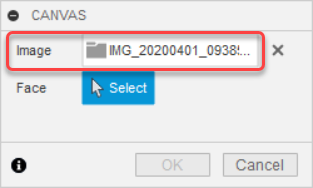
- Select a face to place the image on.
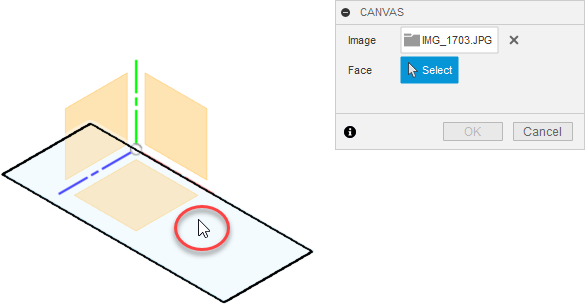 .
. - The image is displays on the face you selected, and the Canvas dialog expands with additional settings.
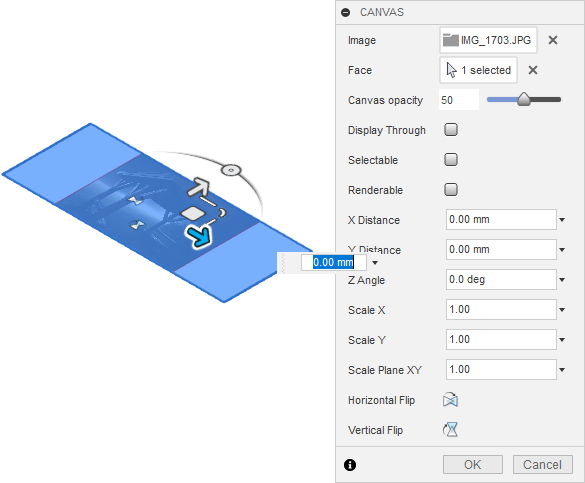
- In the dialog, adjust the image settings:
- Display Through: Lets the image show through objects that are in front of it.
- Selectable: Lets you select the image like any other object.
- Renderable: Renders the image as a part of the assembly in the Render workspace.
- Adjust image position with the manipulator handles on the image or specify values in the dialog.
- In the dialog, adjust the Scale values.
- Optional: Flip the image horizontally or vertically.
- Click OK.
The image displays in the canvas according to the settings you specified.
Tips
- Use Calibrate to scale your canvas to a specific size so you can use it as a reference for your design.
- For a successful import, ensure the file extension matches the true file format. Supported file types include
PNG,JPG,JPEG,TIF, andTIFF.