Project Command
Project geometry onto a sketch plane
Learn how to use the Project command to project geometry from outside the active sketch onto the sketch plane so that you can reference surrounding features in a design as you define a sketch in Fusion.
Project bodies, faces, edges, or points
- On the Sketch contextual tab, select Create > Project/Include > Project
 .The Project dialog displays.
 - In the dialog, select a Selection Filter:
- Specified Entities: Limits the selection set to faces, edges, and points.
- Bodies: Limits the selection set to bodies.
- In the canvas, select the bodies, faces, edges, or points to project.
- Optional: Uncheck Projection Link if you don’t want to maintain an associative relationship with the selected objects.
- Click OK or press Enter.
The selected objects are projected onto the active sketch plane, and display as purple projection geometry.
Show or hide projection geometry
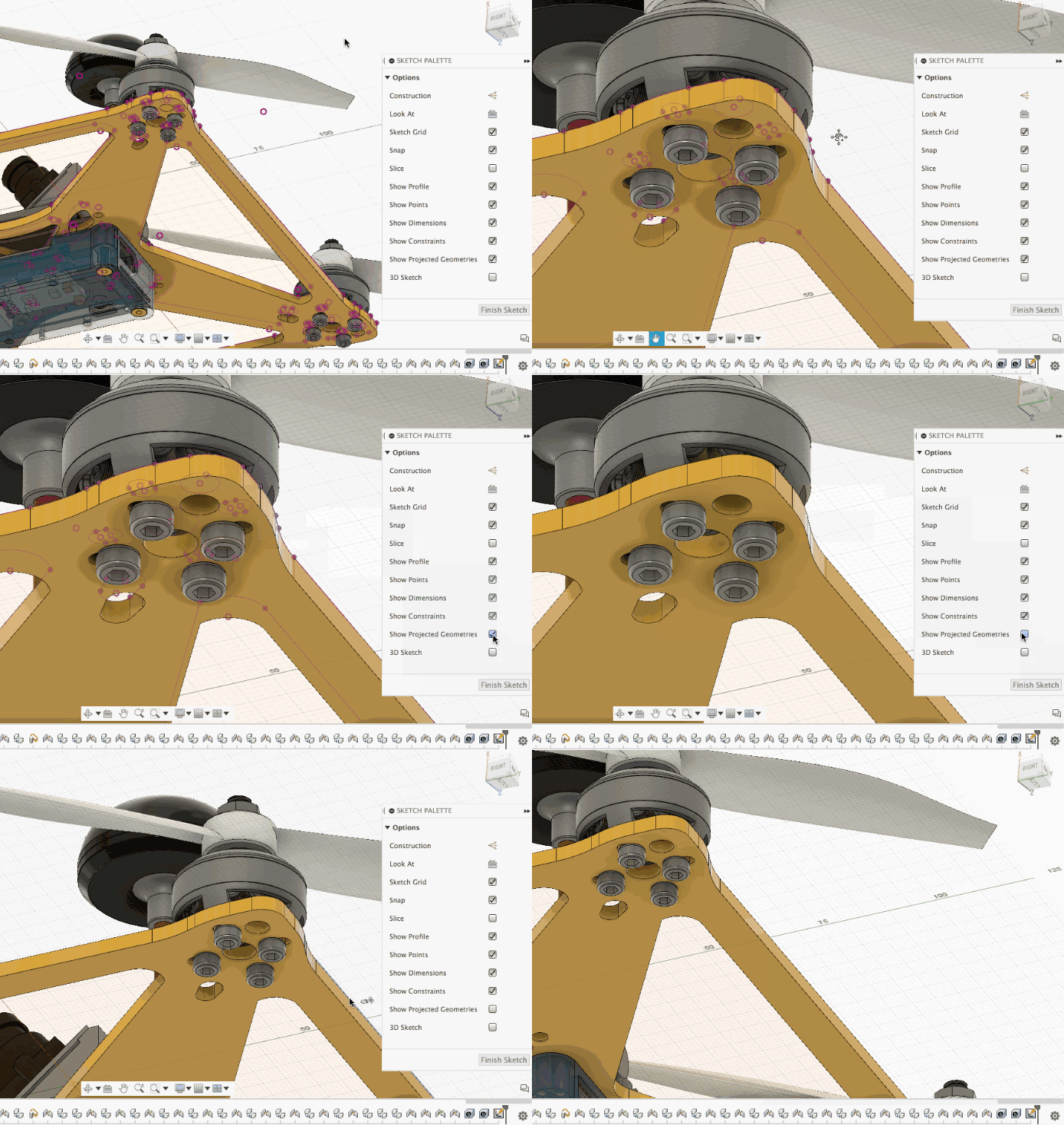
n the Sketch Palette, check or uncheck Show Projected Geometries.
Manage lost projections
If you change the objects you projected from the design and the associative relationship is broken, a yellow warning displays on the Sketch feature in the Timeline to indicate the Projection Link is lost. The affected projection geometry is highlighted orange or yellow in the canvas.
- In the Timeline, right-click the Sketch feature.
- Select Manage Lost Projections.The Manage Lost Projections dialog displays.
- In the dialog, select a lost projection.
- Select an Operation:
- Re-Link: Select a body, face, edge, or point to re-establish the associative relationship.
- Break Link: Break the associative relationship between the original object and the projection geometry in the sketch. The non-associative geometry remains in the sketch at its current location.
- Delete Geometry: Delete the projection geometry from the sketch.
- Repeat steps 3-4 for each lost projection.
- Click OK.
The associative relationships are re-established, broken, or deleted in the active sketch.
Tips
- Uncheck Projection Link if you don’t want to maintain an associative relationship between the selected objects and the projection geometry.
- When you manage lost projections in complex sketches, check Fade Other Geometry to make lost projections easier to see.
- In the Options section, click Delete All or Break Link All to delete the projection geometry or break the associative link for all of the lost projections at once.