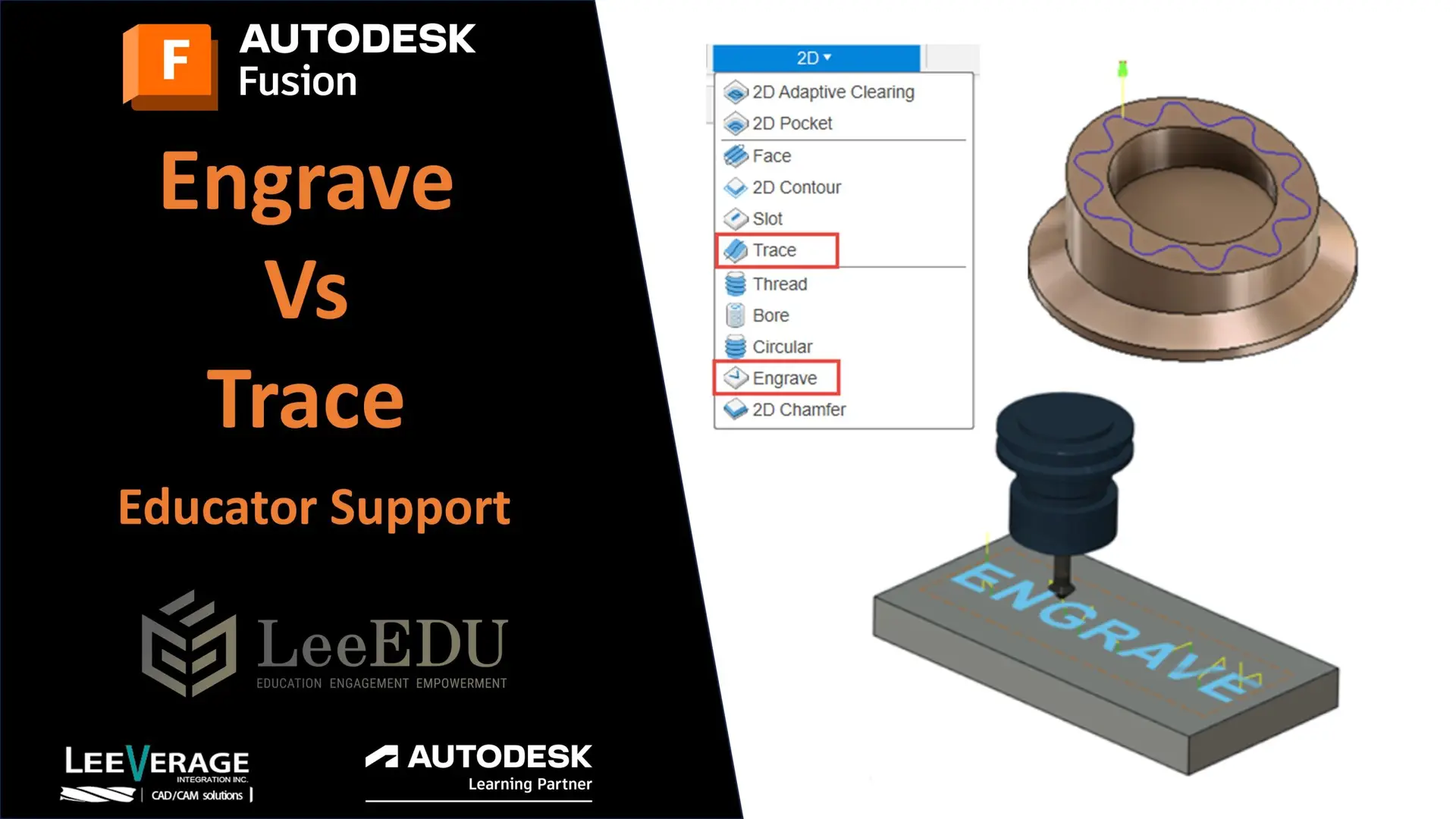
Engrave milling strategy
Engrave is commonly used to machine text and imported art work. The toolpath requires chamfer tools that have pointed tips. The tip of the tool is used to create sharp edges on the pocket’s corners. When you select a chain, the Engrave toolpath finds the center and drives the chamfer tool between the edges. The tool moves up and down as the width of the area being cut changes.
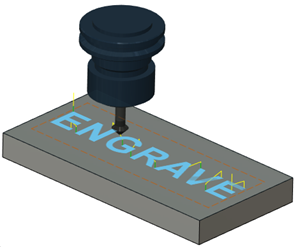
Engrave toolpath used to engrave some text
Engrave creates sharp corners in the pocket by moving the cutter along the corner intersections. The tool does not create the sharp corners if the angle between the corners is greater than the Sharp Corner Angle parameter. For aesthetic reasons, you can control whether you want a sharp corner or not by using the Sharp Corner Angle.
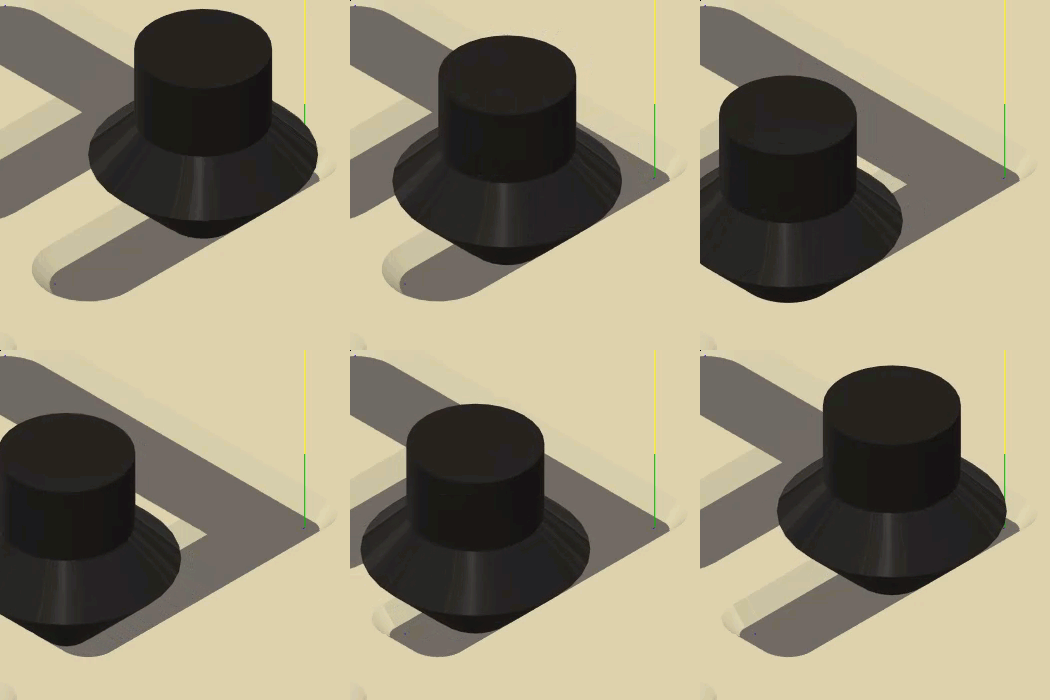
Animation showing the tool creating sharp corners at intersections
Generate an Engrave toolpath
- On the Manufacture workspace toolbar, click Milling > 2D > Engrave.The Engrave dialog opens.
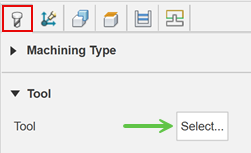
- On the Tool tab, click Select to pick a tool. If you have not created a tool to use, In the left panel of the dialog, from the Fusion Library, pick a tool from the Sample Tools library.Tip: Engrave/Chamfer mills with a pointed tip are best suited for Engrave toolpaths. To have a pointed tip on a regular engrave/chamfer tool, edit the tool and then in the Cutter tab, set the tip diameter to equal to zero.
- On the Geometry tab, with Contour Selection active, select text, edges, or closed sketch profiles to drive the toolpath.
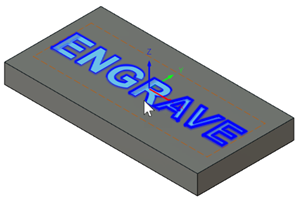
- Optional steps:
- On the Passes tab, to determine whether you want sharp corner edges or rounded corner edges, adjust the Sharp Corner Angle parameter.
- To reduce the load on the tool by taking lighter cuts, enable the Multiple Depths checkbox.
- Click OK.
The toolpath is generated.
Engrave reference
Engrave machines along the contours with V-shaped chamfer tools. Select the profile with Edges, Sketches or Faces. The tip of the tool is used to create sharp edges on the cavity corners.
Manufacture > Milling > 2D > Engrave 
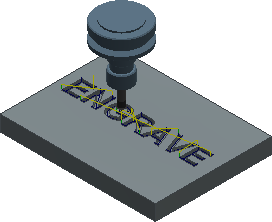 Toolpath generated for the selected Edges Toolpath generated for the selected Edges | 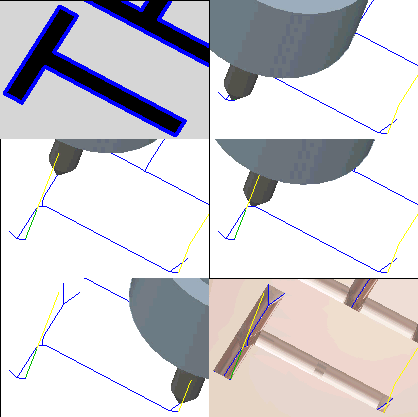 The Edge is selected (Blue).The area is cleared out.The corners are sharpened with the tool. The Edge is selected (Blue).The area is cleared out.The corners are sharpened with the tool. |